
Using the Staging Site
A staging site is a private copy of cadence-group.com where you can try changes (new pages, white papers, blog posts, SEO edits, layout changes) without touching the live website. When a change looks right on staging, it can be pushed to the live site.
The Cadence Group website is hosted on SiteGround. Staging copies are created and managed in SiteGround Site Tools → WordPress → Staging, not from inside WordPress. There’s no staging plugin to install.
The current staging site
Section titled “The current staging site”| Staging address | staging2.cadence-group.com |
| Staging login | staging2.cadence-group.com/wp-admin |
| Username and password | The same WordPress login you use on the live site. It was copied over when the staging site was created. |
| Created | November 19, 2026, by Jim (Visionquest Development) |
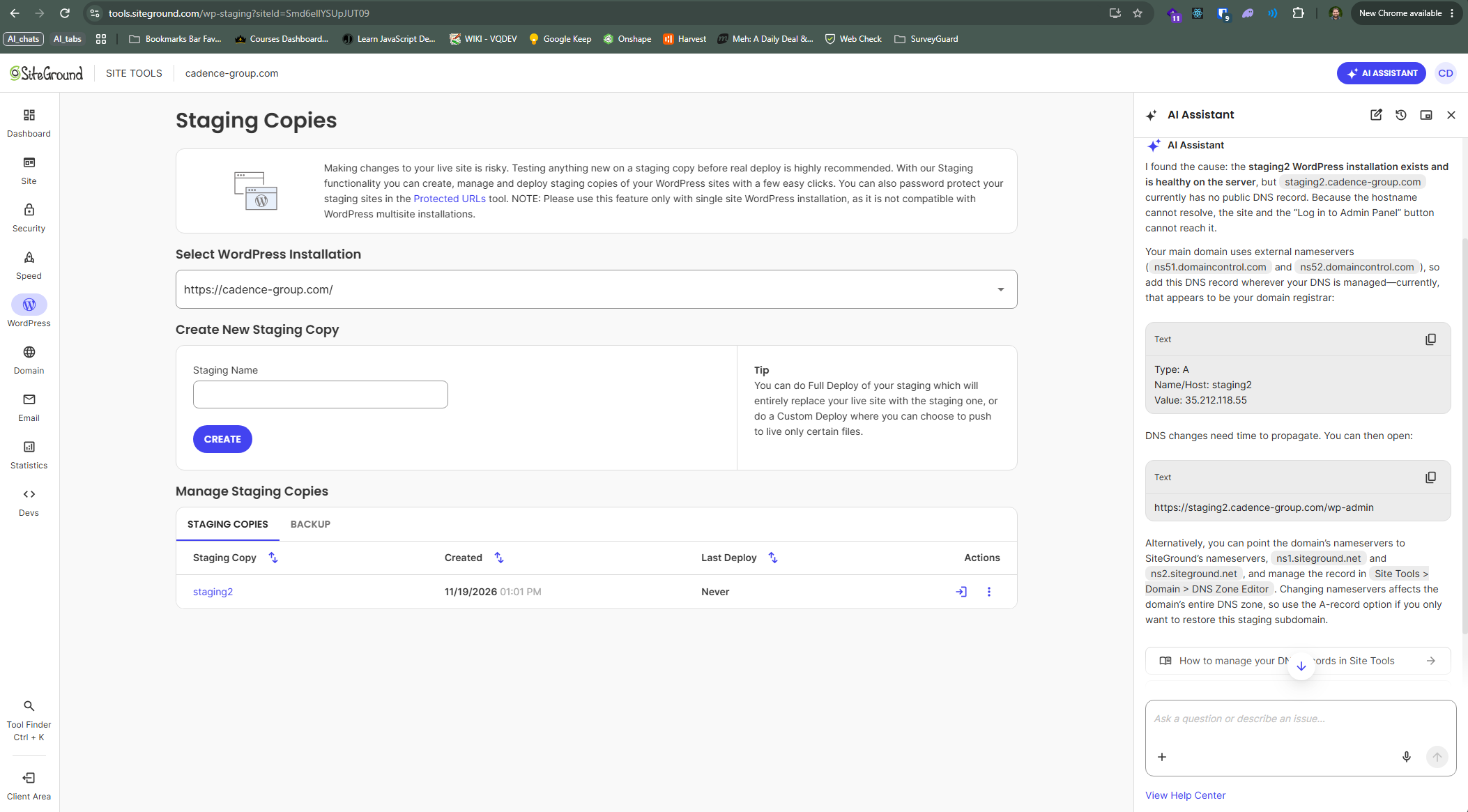
In SiteGround Site Tools, under WordPress and then Staging, the staging2 copy appears. On the right, SiteGround’s assistant explains that the domain’s DNS is at GoDaddy, so the record has to be added there.
Why does Jim need to add a DNS record?
Section titled “Why does Jim need to add a DNS record?”Every website address needs an entry in an “address book” called DNS. DNS tells browsers which server a name like staging2.cadence-group.com lives on.
- The domain cadence-group.com is registered at GoDaddy.
- Its nameservers (the setting that decides who runs the address book) still point to GoDaddy (
ns51.domaincontrol.comandns52.domaincontrol.com), not SiteGround. - The website itself now lives on SiteGround’s servers.
When you create a staging copy, SiteGround builds the copy on its server, but it can’t add the matching address to GoDaddy’s address book. So nobody’s browser can find the new staging site. SiteGround’s own staging guide says the same thing: if your nameservers aren’t pointed to SiteGround, you have to add the staging address yourself at your current DNS provider.
For staging2, Jim added that record by hand at GoDaddy on November 19, 2026:
| Type | Host | Points to |
|---|---|---|
| A | staging2 |
35.212.118.55 (the SiteGround server) |
When the record exists (staging2 today)
Section titled “When the record exists (staging2 today)”
When there’s no record (any new staging name)
Section titled “When there’s no record (any new staging name)”
Need a new staging site?
Section titled “Need a new staging site?”
In short:
- Check SiteGround first. In Site Tools → WordPress → Staging, look under Manage Staging Copies. If staging2 is there, use it.
- If you need a new one, create it in SiteGround (see Creating, deploying and protecting staging copies).
- Contact Jim with the exact staging name SiteGround gave it (for example
staging3). - Jim adds the DNS record at GoDaddy. DNS changes can take a little while to show up everywhere.
- Then the new staging site loads.
Could this be automatic?
Section titled “Could this be automatic?”Yes. If the domain’s nameservers were moved from GoDaddy to SiteGround (ns1.siteground.net and ns2.siteground.net), SiteGround could create staging addresses on its own, and your team could create and deploy staging copies without waiting on Jim.
The catch is that moving the nameservers moves all of the DNS for cadence-group.com to SiteGround, including the email records. Every existing record has to be copied over correctly first, or email and other services could stop working. That’s a decision for Jim to plan and make with you, so for now the nameservers stay at GoDaddy and Jim handles staging DNS.
Before you push staging to the live site
Section titled “Before you push staging to the live site”- Make your changes on staging and check them carefully.
- Pushing to live is done from SiteGround with Full Deploy or Custom Deploy. Read what each one does before you click. A Full Deploy replaces the whole live site, including its database.
- If you’re not sure, ask Jim before deploying.